Advanced Search
To search for an existing promotion click the Advanced Search button on the top of the screen (pictured below).

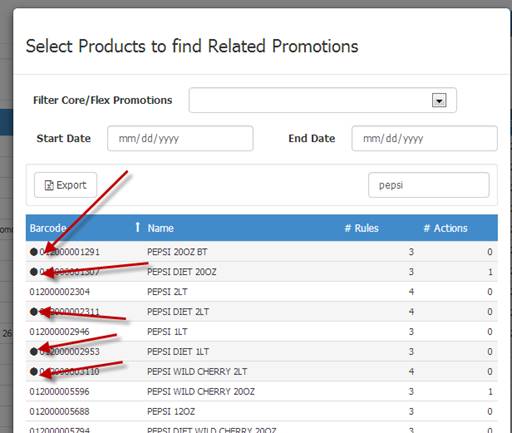
A search window will open where you can select products related to any active or pending promotion(s). Use the search field at the top of the window to narrow your search and find specific items (pictured below).
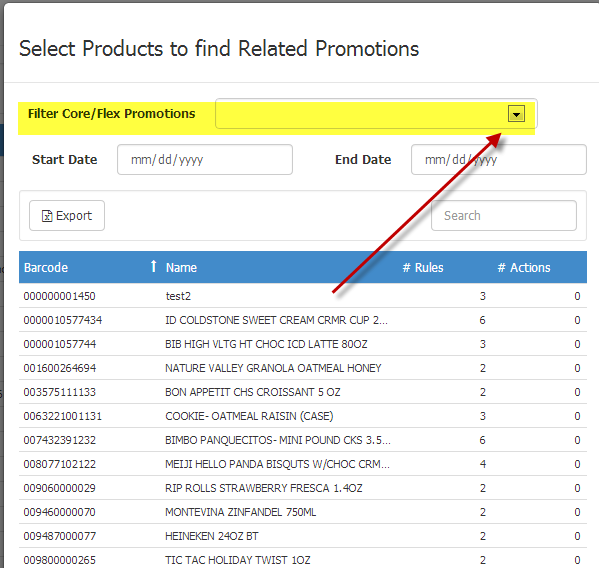
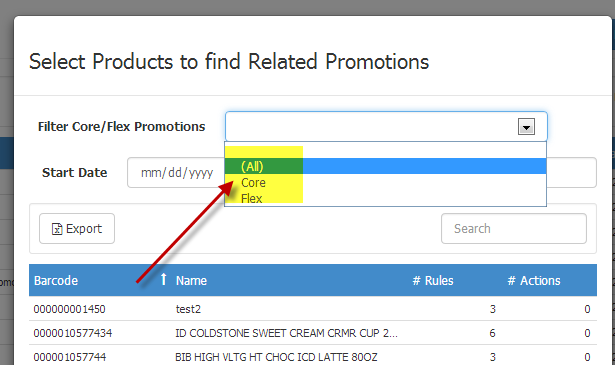
You can choose to filter HQ/Local (Core/Flex) Promotions by choosing from the dropdown:
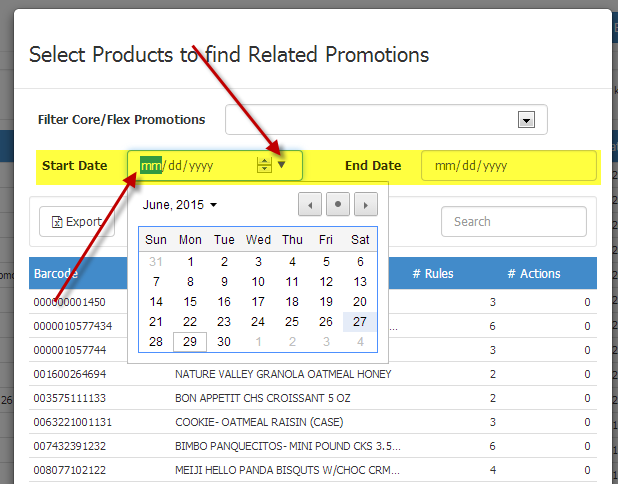
You can also choose to search by start and end date of the promotion:
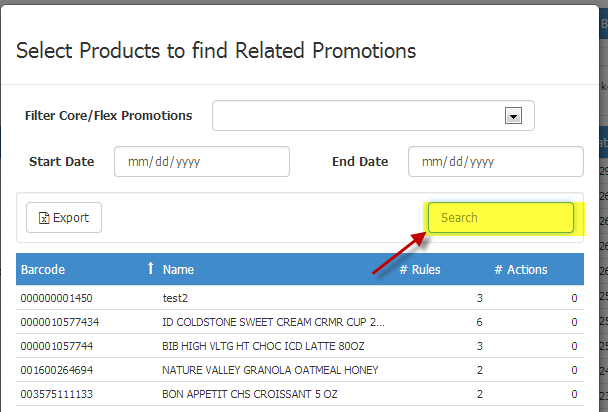
Or you can type the name or SKU # in the SEARCH section:
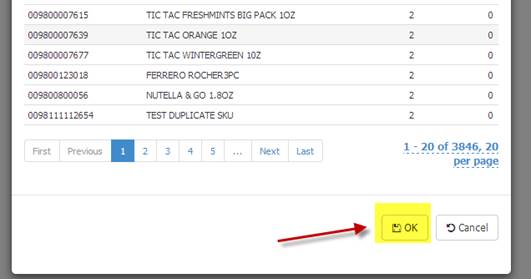
Once you see the items that you want to search for, hold down the CTRL key and click on the SKUs that you want to search for and a bullet will show them as tagged. #Rules = this is the # of promo rules that have that item in it. #Actions = this is the # of action rules that have that item in it. Then click ok to see your search…
Then all the promos with those SKUs will appear. Click RESET to start your search over.
NOTE: This search tool only displays ACTIVE, PENDING, and REJECTED promotions. CANCELLED, and EXPIRED promotions do NOT appear.