C-Store Sales
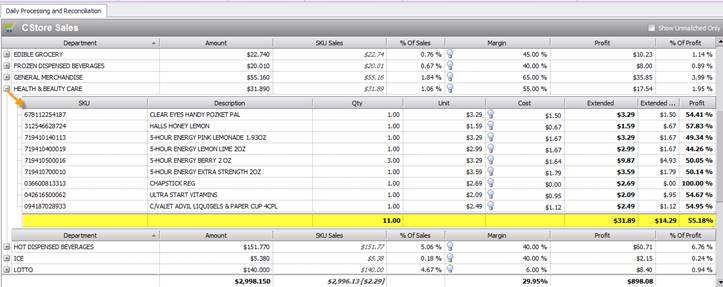
This shows your sales by department and item level with margins. You can expand any dept. by clicking on the “+” sign to see the items that were sold in the department for that particular day (pictured below).
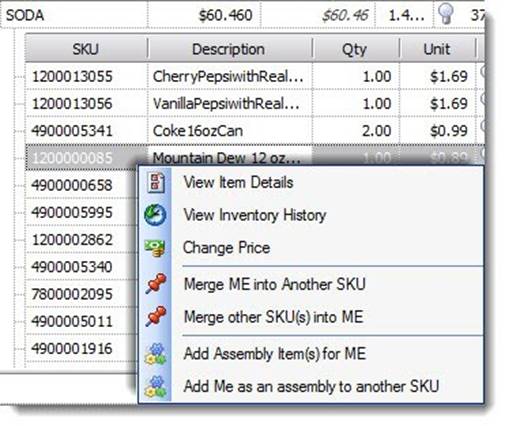
If you notice a glaring issue with item details, you can right click on any item to view its inventory history, change retail or see item details (pictured below).
You can also click on any heading to sort by that heading in A to Z or Z to A order.
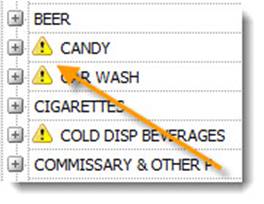
If you see the “!" Symbol in yellow (pictured below) that means that your Dept. sales do not match your SKU sales detail. This can be caused by items in different Depts. in S2K vs the POS, it can also be caused by sales in the Dept. and not at item level. This can also mean you had sales of items that do not exist in S2K. These symbols are indicators that there is something that needs your attention.