 |
|
To do this, press ‘MENU’.
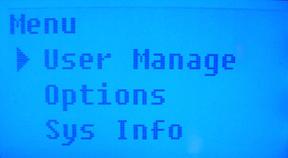
‘User Manage’ is selected. Press ‘OK’.
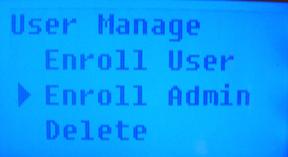
Use arrow keys to select ‘Enroll User’ or ‘Enroll Admin’ depending on which user you would like to create backup fingerprint and password for. Press ‘OK’.
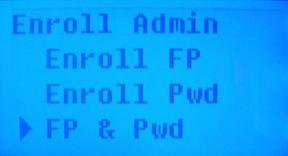
Arrow down to select what type of backup you would like to add. For fingerprint only, select ‘Enroll Pwd’. For password only select ‘Enroll Pwd’. For fingerprint and password, select ‘FP & Pwd’.
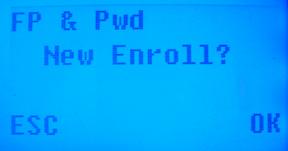
Press ‘ESC’ as you are not creating a new enrollment, but adding to an existing one.
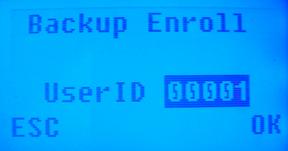
Enter the User ID number for which you would like to add backup enrollment. Press ‘OK’.
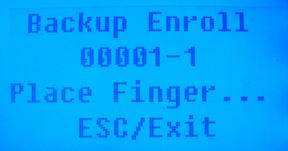
Place the finger you wish to store onto the fingerprint pad. It will prompt you when to remove your finger. In order to get an accurate fingerprint, you will do this three times.
**Always place finger FLAT on the CENTER of the sensor surface. Placing the finger too low, too high, too far left or right and/or not flat on the fingerprint surface can create errors.**
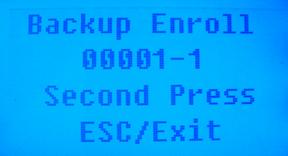
Place the same finger onto the fingerprint pad again.
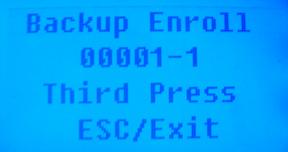
Place the same finger onto the fingerprint pad for the 3rd and last time.
 Contents
 Index
Index Search
 Previous
 Next
Next