 |
|
To enroll a new User with only a password, Press ‘MENU’ on the key pad. This will bring up the menu below. Note that the administrator will need to verify their identity with their fingerprint to access this menu.
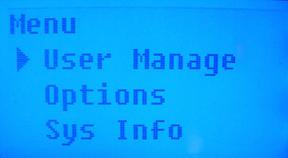
‘User Manage’ is selected. Press ‘OK’.
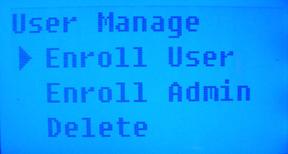
Enroll User in the ‘User Manage’ Menu is selected. Press ‘OK’.
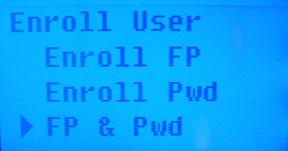
Arrow down once to select ‘FP & Pwd’ and press ‘OK’.
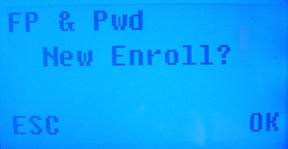
Press ‘OK’ to confirm you would like to enroll a fingerprint and password for a new user.
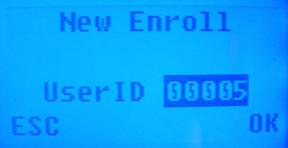
The next available User ID number will automatically be selected. You can also enter in a number (the range is 1 through 65534). Press ‘OK’.
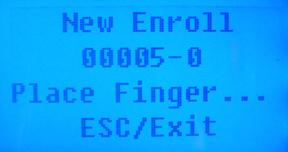
Place the finger you wish to store onto the fingerprint pad. It will prompt you when to remove your finger. In order to get an accurate fingerprint, you will do this three times.
**Always place finger FLAT on the CENTER of the sensor surface. Placing the finger too low, too high, too far left or right and/or not flat on the fingerprint surface can create errors.**
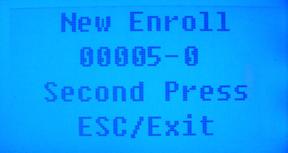
Place the same finger onto the fingerprint pad again.
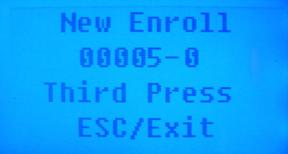
Place the same finger onto the fingerprint pad for the 3rd and last time.
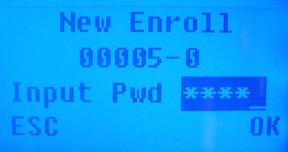
Input a password of up to 5 numbers and press ‘OK’.
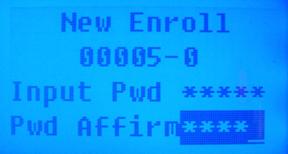
Re-enter the password to confirm and press ‘OK’.
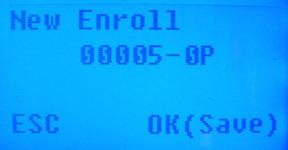
Press ‘OK’ to Save the new enrollment.
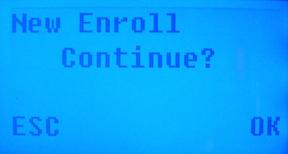
To enter another enrollment, press ‘OK’. If you are done, press ‘ESC’.
 Contents
 Index
Index Search
 Previous
 Next
Next