 |
|
To enroll someone with just a password, Press ‘MENU’ on the key pad. This will bring up the menu below. Note that the administrator will need to verify their identity with their fingerprint to access this menu.
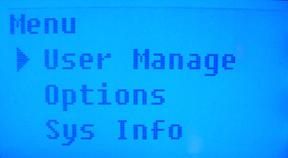
‘User Manage’ is selected. Press ‘OK’.
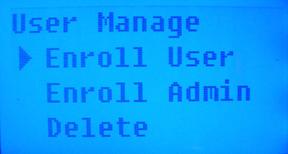
Enroll User in the ‘User Manage’ Menu is selected. Press ‘OK’.
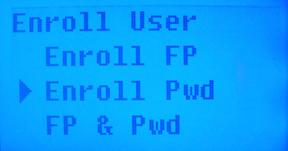
Arrow down once to select ‘Enroll Pwd’ and press ‘OK’.
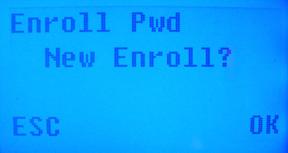
To confirm new enroll, press ‘OK’.
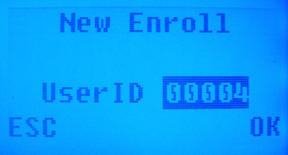
The next available User ID number will automatically be selected. You can also enter in a number (the range is 1 through 65534). Press ‘OK’.
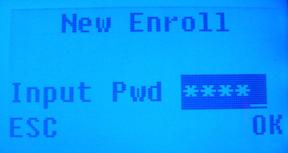
Input a password of up to 5 numbers and press ‘OK’.
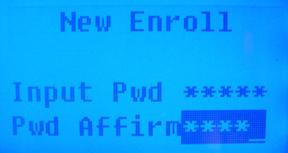
Re-enter the password to confirm and press ‘OK’.
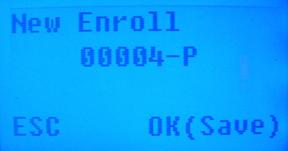
Press ‘OK’ to Save the new password enrollment.
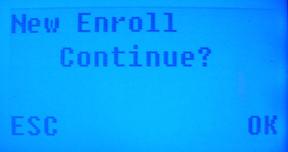
If you would like to enter another new password enrollment, press ‘OK’,
otherwise, press ‘ESC’.
 Contents
 Index
Index Search
 Previous
 Next
Next