|
|
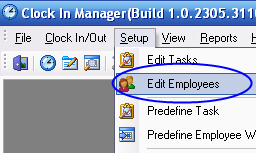
To go ahead and enter an employee into ClockMeIn, click on Edit Employees in the Setup drop down menu as seen below.
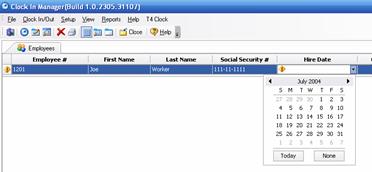
As you can see, the Employees tab comes up with columns for all the employees’ pertinent information. You will be entering all this information manually for each employee.
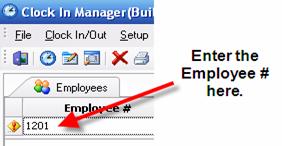
To begin entering the first employee, click in the empty box under Employee # and enter in any number other than zero. Do not use the number zero.
Note: If using a T4 Fingerprint Device, the Employee # will be the User ID # that will be used to enter fingerprint and password verification onto the device. The range of numbers you can use is 1 through 65534.
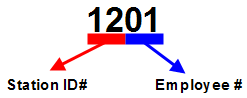
If you have more than one station, we recommend you use the following system.
The number you choose should be 4 digits, the first 2 numbers identifying the station # (a number of your choice) and then the second 2 numbers for the employee # as seen below.
IMPORTANT: Do not use a zero as the first number.
Enter in the employees’ information, either clicking into each box or hitting the tab key to move to the next field.
You will need to use the dropdown menu in the hire date field to enter in the date.
Once you have entered in all the information, hit enter and a new line will appear above the ones already entered. Go ahead and enter in the next employee’s information and continue until all the employees have been entered.
 Contents
 Index
Index Search
 Previous
 Next
Next